
Tip
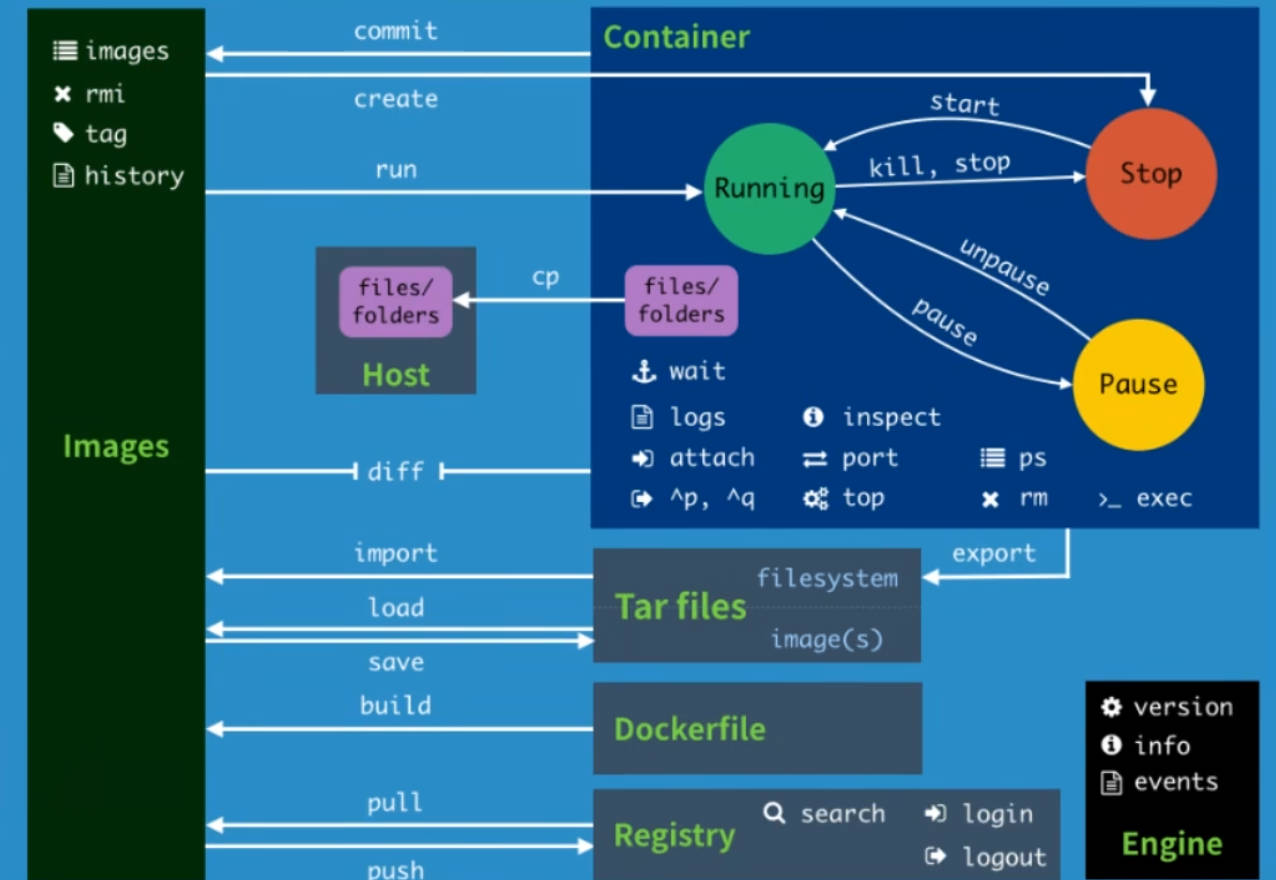
帮助命令
Terminal
$docker version# 版本信息
$docker version# 系统信息,包括镜像和容器数量
$docker --help# 帮助
镜像管理
查看本机镜像
Terminal
$docker image ls# 查看镜像
REPOSITORY TAG IMAGE ID CREATED SIZE
hello-world latest d2c94e258dcb 10 months ago 13.3kB
$docker images# docker image ls 的简写
$docker images -q# 只显示镜像 id
查看仓库镜像
Terminal
$docker search [name]
$docker search --filter=STARS=200 mysql# --filter 筛选条件
NAME DESCRIPTION STARS OFFICIAL
mysql MySQL is a widely used, open-source relation… 14891 [OK]
mariadb MariaDB Server is a high performing open sou… 5684 [OK]
percona Percona Server is a fork of the MySQL relati… 624 [OK]
phpmyadmin phpMyAdmin - A web interface for MySQL and M… 953 [OK]
下载镜像
Terminal
$docker pull [name:tag]# docker image pull 的别名
$docker pull mysql
Using default tag: latest # 默认下载 latest 版,
latest: Pulling from library/mysql
81badc5f380f: Already exists # 分层下载,类似于动态库,本地存在就不再下载,详情见「联合文件系统」
c490e5dd1a9d: Already exists
87aeb61f1478: Pull complete
1cacbea6ceda: Pull complete
1e72891ace67: Pull complete
42b720363d36: Pull complete
6b3b50f9990a: Pull complete
3811d52cfa61: Pull complete
05bc7a0277d8: Pull complete
cc0abd25a274: Pull complete
Digest: sha256:ff5ab9cdce0b4c59704b4e2a09deed5ab8467be795e0ea20228b8528f53fcf82
Status: Downloaded newer image for mysql:latest
docker.io/library/mysql:latest # mysql 对应的真实地址
$docker pull docker.io/library/mysql:latest# 与上面等价
删除镜像
Terminal
$docker images
REPOSITORY TAG IMAGE ID CREATED SIZE
mysql latest a88c3e85e887 6 weeks ago 632MB
hello-world latest d2c94e258dcb 10 months ago 13.3kB
$docker rmi a88c3e85e887# 根据 IMAGE ID 删除,rmi 中的 i 是 image
Untagged: mysql:latest
Untagged: mysql@sha256:ff5ab9cdce0b4c59704b4e2a09deed5ab8467be795e0ea20228b8528f53fcf82
Deleted: sha256:a88c3e85e887d78c6c16ee6a0a6297e09bd573193918a08f269a942ddad77856
Deleted: sha256:a47e3f5184188d0ded58167f81ed399bda838b37716d6a0d9fb538ae64371767
Deleted: sha256:750ea5242272cdbf344d0af35c4eff64c7b0296491bf9747214d4012c4feb391
Deleted: sha256:2f17d48c81db0969179826d20d81e1cd333676a714e293a19a6fdaa2d57b1f27
Deleted: sha256:bea3f162c4bd2492d6cfce9f715c60a61020205e82647343034c33c2d2c1c720
Deleted: sha256:d3ad25eecba2cc8f5d837c5436fd4ce2230c51c6a6b206125b9dba76f83bd02f
Deleted: sha256:8fb5524227094d3e8963e8bb93af8835a5928f34a072e2272aaf330b00fc3a58
Deleted: sha256:3dcdcc4db1094b30a257b6feb414db6149934171333bc8c6ea543578021862ac
Deleted: sha256:706b673eebeed9bc92da642eee3a1f5ea076e149b98491624ce7436ee40d115d
Deleted: sha256:ed862c4f3420f8cdf5fb1160305a714585ffd0cc739c6f6306c750e82d50cd75
Deleted: sha256:55d310cc1793fd699f7389585b86d5ff0270ad8f516f81db295e51e12f6d0b5b
$docker rmi $(docker images -aq)# 批量删除
容器管理
容器查看
查询容器
Terminal
$docker ps [OPTIONS]
Options:
当前运行的容器
-a 当前运行的容器 + 历史运行过的容器
-n 显示 n 个最近创建的容器
-q 只显示容器编号
$docker ps -a
CONTAINER ID IMAGE COMMAND CREATED STATUS PORTS NAMES
c66d975d5cd8 centos "/bin/bash" 8 minutes ago Exited (0) 2 minutes ago wonderful_turing
6ff2861f85cd hello-world "/hello" 2 hours ago Exited (0) 2 hours ago thirsty_lamport
5aa83dbebe24 hello-world "/hello" 2 hours ago Exited (0) 2 hours ago hopeful_kowalevski
$docker stats# 查看资源占用
详细信息
Terminal
$docker inspect a8ac22219a85
[
{
"Id": "a8ac22219a851ad89e3255339c87818d6db4bf99b522f0d66d623af765a2ee31",
"Created": "2024-03-02T07:35:24.046372671Z",
"Path": "/bin/bash",
"Args": [
"-c",
"while true;do echo hello; done"
],
"State": {
"Status": "running",
"Running": true,
"Paused": false,
"Restarting": false,
"OOMKilled": false,
...
容器控制
运行容器
- 前台启动
Terminal
$docker run [options] image
Options:
--name string 指定容器名
--rm 用完就删除容器,用于测试
-d detach 后台运行
-i interaction 与镜像交互,STDIN 能输入信息给容器
-t tty 创建一个终端
-p 指定容器端口
-p ip:主机端口:容器端口
-p 主机端口:容器端口
-p 容器端口
-P 随机端口
-e 在容器中添加环境变量
$docker run -it centos
$cat /etc/os-release
NAME="CentOS Linux"
VERSION="8"
ID="centos"
....
$uname -a# 可以看见容器的内核还是宿主机
Linux c66d975d5cd8 5.15.133.1-microsoft-standard-WSL2 #1 SMP Thu Oct 5 21:02:42 UTC 2023 x86_64 x86_64 x86_64 GNU/Linux
$exit# 退出容器
exit
Note
容器运行内核与宿主机一样,容器并没有真正的去模拟一个完整的操作系统
- 后台启动
Terminal
$docker run -d centos
99819860032efb1ab496f49704b5e48bf34a6c5b72afac6ad95466225e24d658
$
$docker ps -a
CONTAINER ID IMAGE COMMAND CREATED STATUS PORTS NAMES
99819860032e centos "/bin/bash" 35 seconds ago Exited (0) 34 seconds ago crazy_carver
$docker run -dt centos# 给 centos 创建了一个终端
b1629236e946f166ba6173c9226d84564caf912429c99e005230fb714e357532
$docker ps -a
CONTAINER ID IMAGE COMMAND CREATED STATUS PORTS NAMES
b1629236e946 centos "/bin/bash" 6 seconds ago Up 5 seconds dazzling_hellman
99819860032e centos "/bin/bash" 9 minutes ago Exited (0) 2 minutes ago crazy_carver
[!warning|style:flat] 使用 docker 后台运行镜像时,必须确保镜像是能呆在后台运行。
centos在后台启动后,检测到没有终端(终端可以理解为一个文件,centos 对终端命令的读取,即STDIN,会阻塞),就直接运行结束并退出。
退出容器
exit            # 停止容器,退出到终端
ctrl + p + q    # 容器不停止,退出到终端
exit # 停止容器,退出到终端
ctrl + p + q # 容器不停止,退出到终端
进入容器
- 方法一
Terminal
$docker ps -a
CONTAINER ID IMAGE COMMAND CREATED STATUS PORTS NAMES
c66d975d5cd8 centos "/bin/bash" About a minute ago Up About a minute elated_hoover
6ff2861f85cd hello-world "/hello" 2 hours ago Exited (0) 2 hours ago thirsty_lamport
$docker exec -it c66d975d5cd8 /bin/bash# 通过容器执行一个命令,然后进入
$
- 方法二
Terminal
$docker ps
CONTAINER ID IMAGE COMMAND CREATED STATUS PORTS NAMES
a8ac22219a85 centos "/bin/bash -c 'while…" 33 minutes ago Up 33 minutes focused_benz
$docker attach a8ac22219a85# 将容器后台运行内容展示到前台
hello
hello
hello
hello
hello
...
停止启动
Terminal
$docker start 容器id
$docker restart 容器id
$docker stop 容器id
$docker kill 容器id
删除容器
Terminal
$docker ps -a
CONTAINER ID IMAGE COMMAND CREATED STATUS PORTS NAMES
cb3cce70496c centos "/bin/bash" About a minute ago Up About a minute elated_hoover
c66d975d5cd8 centos "/bin/bash" 18 minutes ago Exited (0) 12 minutes ago wonderful_turing
6ff2861f85cd hello-world "/hello" 2 hours ago Exited (0) 2 hours ago thirsty_lamport
$docker rm c66d975d5cd8
c66d975d5cd8 # 删除成功
$docker rm cb3cce70496c# 不能直接删除正在运行的,可以用 -f 强制删除
Error response from daemon: cannot remove container "/elated_hoover": container is running: stop the container before removing or force remove
输出信息
Terminal
$docker logs [OPTIONS] CONTAINER
Options:
-n, --tail string 打印最新的 n 条日志
-f, --follow 持续读取容器输出的日志,不指定则只读取一次
-t, --timestamps 日常时间戳
$docker run -d centos /bin/bash -c "while true;do echo hello; done"
a8ac22219a851ad89e3255339c87818d6db4bf99b522f0d66d623af765a2ee31
$docker ps
CONTAINER ID IMAGE COMMAND CREATED STATUS PORTS NAMES
a8ac22219a85 centos "/bin/bash -c 'while…" 11 seconds ago Up 10 seconds focused_benz
$docker logs -n 10 -t a8ac22219a85 | cat -n
1 2024-03-02T07:36:30.969703169Z hello
2 2024-03-02T07:36:30.969704899Z hello
3 2024-03-02T07:36:30.969709739Z hello
4 2024-03-02T07:36:30.969711549Z hello
5 2024-03-02T07:36:30.969713229Z hello
6 2024-03-02T07:36:30.969714939Z hello
7 2024-03-02T07:36:30.969716639Z hello
8 2024-03-02T07:36:30.969718349Z hello
9 2024-03-02T07:36:30.969725679Z hello
10 2024-03-02T07:36:30.969729079Z hello
Tip
docker logs 读取内容本质上就是容器的 STDOUT
内部进程
Terminal
$docker top a8ac22219a85
UID PID PPID C STIME TTY
TIME CMD
root 5064 5044 96 07:35 ?
00:05:01 /bin/bash -c while true;do echo hello; done
文件拷贝
Terminal
$docker ps -a
CONTAINER ID IMAGE COMMAND CREATED STATUS PORTS NAMES
c2de15be257e centos "/bin/bash" 4 minutes ago Exited (0) 45 seconds ago mystifying_volhard
$docker cp c2de15be257e:/home/test.txt ./# 从容器的虚拟磁盘中将文件拷贝出来
Successfully copied 2.05kB to /home/triangle/./